Customize your status page
Everything the status page builder can do, from branding and layout to incidents, subscribers and embeds.
If you haven't made a status page yet, start with Create your first status page. This guide goes through each part of the builder in the order you'll meet it.
The builder
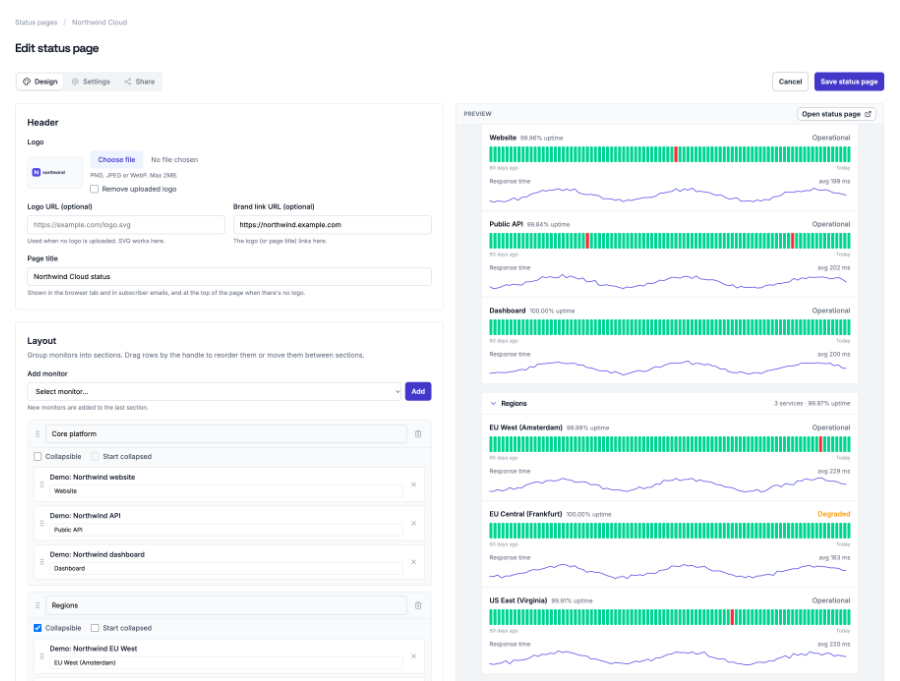
Open a page from Status pages to edit it. The builder has three tabs that share one form, so one Save status page saves all of them and switching tabs never loses what you've typed.
Branding
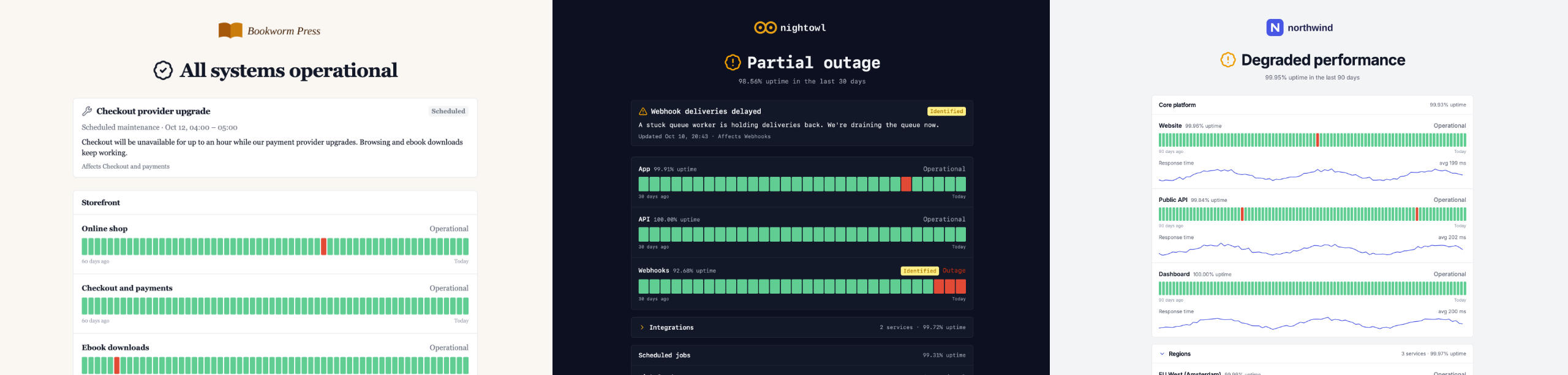
The top of the page is your logo, or the page title when there's no logo. Under it, an overall status line tells visitors at a glance whether everything works.
Shared links to the page show a preview card with your page title, search description and logo.
Layout: sections and monitors
Group monitors into sections, such as Core platform, Regions or Scheduled jobs. Drag rows by their handle to reorder monitors or move them between sections, and drag whole sections to reorder them.
- A section without a title renders as a plain list.
- A collapsible section has a header visitors can click to fold it; Start collapsed folds it by default. A folded section still says how many services it holds, and how many are down.
- Each monitor can have a public name, so internal names like api-prod-eu-1 never appear.
- Uptime and cron monitors mix freely. A late cron job reads as Degraded and a missed one as Outage, the same labels as uptime monitors.
Uptime history and performance
Each monitor has a bar of daily history. A day turns red only for a confirmed incident, not for a single failed check, so a brief blip doesn't make your page look worse than your service was. Hovering a day shows what happened.
Incidents
When something goes wrong, tell visitors what you know. From Status pages, click Incidents next to the page and then Report incident. Give it a title, a status, the affected monitors and a first update.
- Post updates as you go: investigating, identified, monitoring, resolved. The incident's status follows its latest update.
- Open incidents are pinned to the top of the page, and affected monitors show the incident next to their own status.
- Each incident has a permalink with its whole timeline. Resolved incidents move to Past incidents and the monthly history.
- Untick Show on the status page to keep an incident internal.
Scheduled maintenance
Maintenance belongs to monitors, not to a page, so you schedule it from Maintenance in the sidebar with Schedule maintenance: a title, a start and an end, details, and the affected monitors.
- With Show on status pages on, every page that shows one of those monitors announces the window ahead of time, and only names its own monitors.
- While it runs, affected monitors read Under maintenance and don't turn the page red.
- Alerts for those monitors are muted during the window, and the downtime doesn't count against the page's uptime.
- Post updates while it runs; a Completed update ends the window early.
Subscribers and the feed
Visitors can follow your updates without checking the page:
To see or remove subscribers, open a page's menu under Status pages and choose Subscribers.
Who can open the page
Choose on the Settings tab under Access:
Unlisted and password-protected pages aren't indexed by search engines, and anyone without access gets a "not found" page, so they don't learn the page exists.
Show your status elsewhere
The Share tab has copyable snippets and a preview of each. They update within a minute.
/status/acme.json returns the overall status, each component, open incidents and maintenance, shaped like Statuspage's summary.json so existing scripts read it easily.
Badge in a README
[](https://watchcat.io/status/acme)
Widget on your site
<iframe src="https://watchcat.io/status/acme/embed" title="Acme status"
        width="100%" height="56" style="border:0" loading="lazy"></iframe>
Unlisted pages include their key in these snippets. Password-protected pages don't offer them.
Build pages from code or an agent
Everything above is also available through the REST API and the MCP server, including the logo as a base64 data URI. Point an AI agent at your brand files and it can build the page for you.
curl -X POST https://watchcat.io/api/v1/status_pages \
  -H "Authorization: Bearer $WATCHCAT_API_KEY" \
  -H "Content-Type: application/json" \
  -d '{
    "name": "Acme",
    "headline": "Acme status",
    "theme": "dark",
    "accent_color": "#f59e0b",
    "font": "mono",
    "show_uptime_percentage": true,
    "sections": [
      {
        "title": "Core platform",
        "monitors": [ { "id": 12, "display_name": "Public API" }, 14 ]
      },
      {
        "title": "Scheduled jobs",
        "collapsible": true,
        "monitors": [ { "id": 3, "type": "cron" } ]
      }
    ]
  }'
Start monitoring in minutes
Free plan available. No credit card required.